Installation guide Get started in three steps.
Install the extension directly from the official store. Your browser handles installation and future updates.
1. Open the store
In Chrome, open the NElegalus listing in the Chrome Web Store using the link on this page.
2. Add the extension
Select Add to Chrome, review the permissions shown by your browser and confirm installation.
3. Pin and open
In the browser extensions menu, pin NElegalus to the toolbar. Visit a webpage and select the extension icon.
Extension features Domain status and accountable reporting.
The extension checks the domain of the page you visit against the NElegalus registry. If you have information about potentially illegal content, you can prepare a report for human review.
Public registry
Domain status, registry update time and clear limits of the available data.
Submit a report
The reviewed address, category and description are submitted with your account.
Your preferences
In the new version 3.4.0, choose Lithuanian or English and your preferred theme.
Screenshots The same extension. Your preferred theme.
The new version 3.4.0 report window and settings in light and dark themes. The images use demonstration data. Open any image to view it at full size.
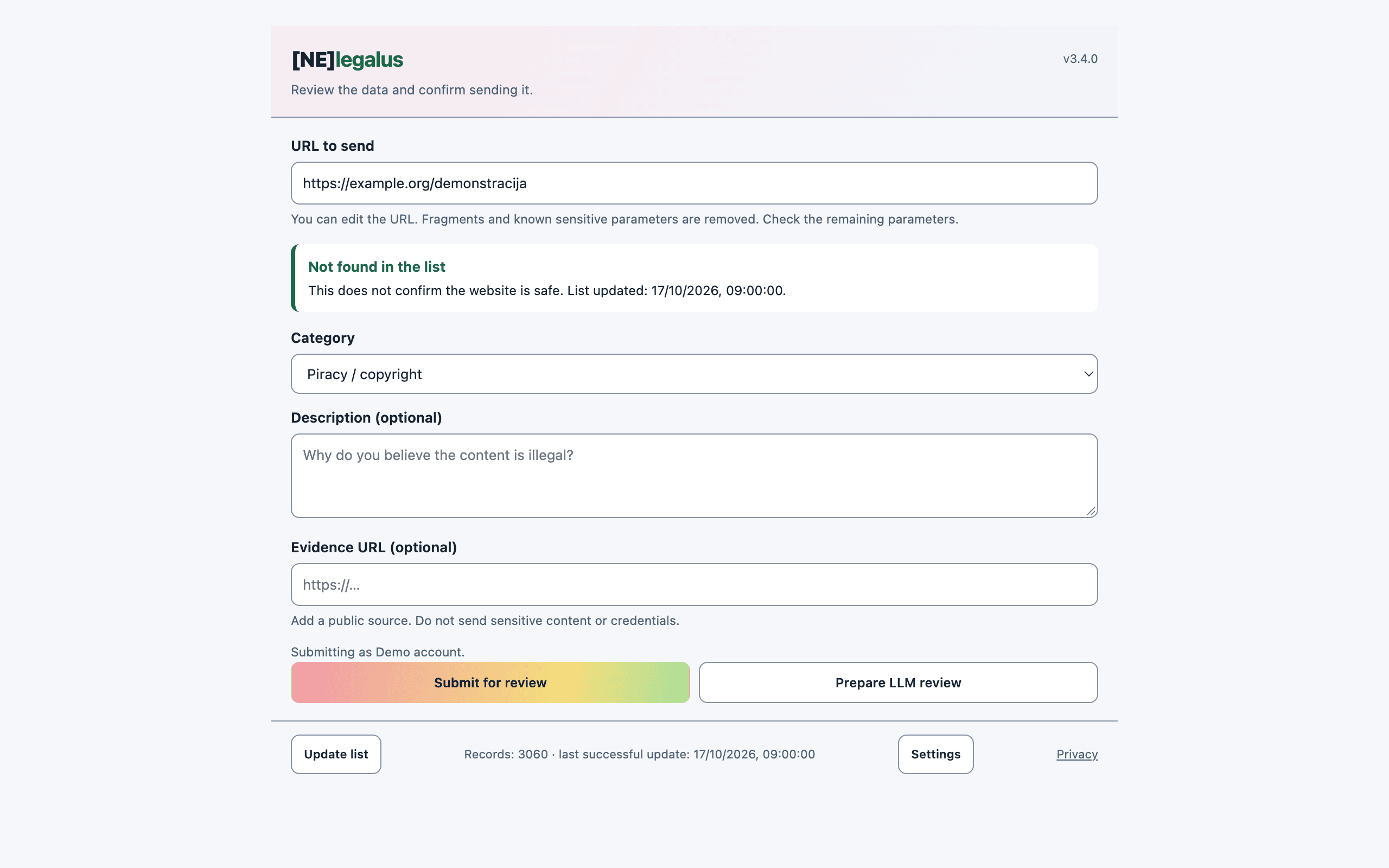
Report window · light theme
Review the page address, domain status and report fields.
View full size (Opens in a new tab)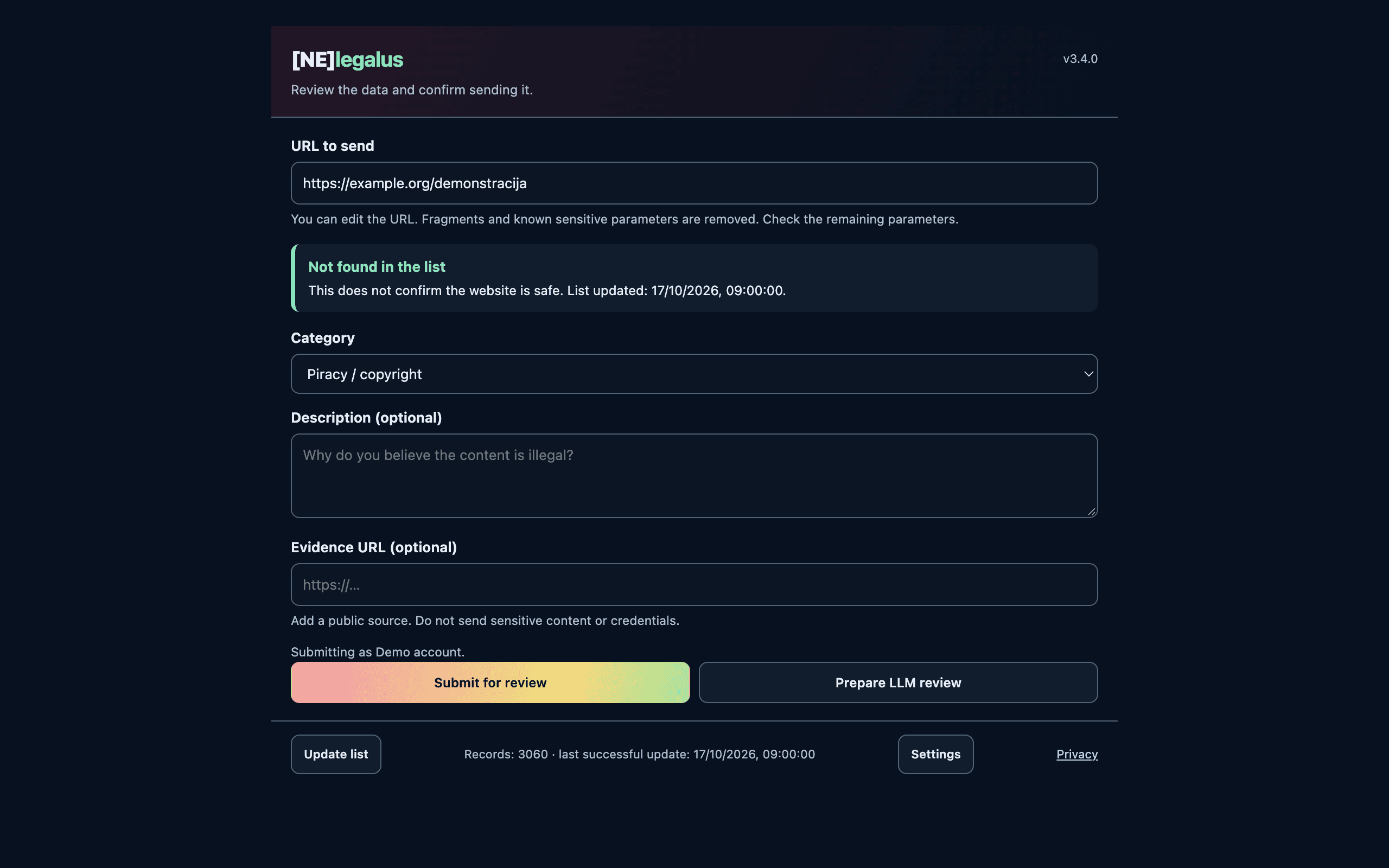
Report window · dark theme
The same reporting controls are available in the dark theme.
View full size (Opens in a new tab)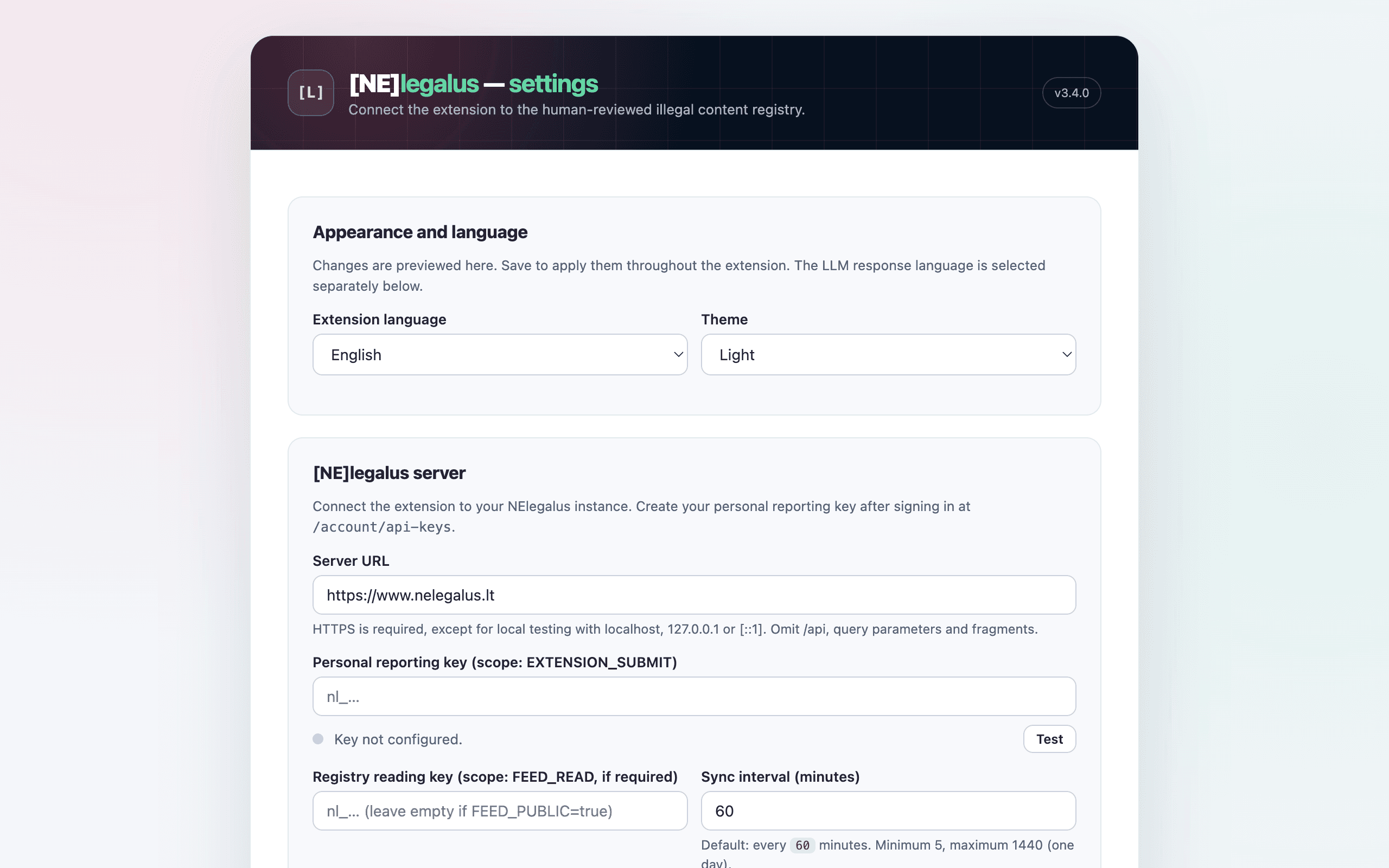
Settings · light theme
Choose the interface language, theme and connection settings in one place.
View full size (Opens in a new tab)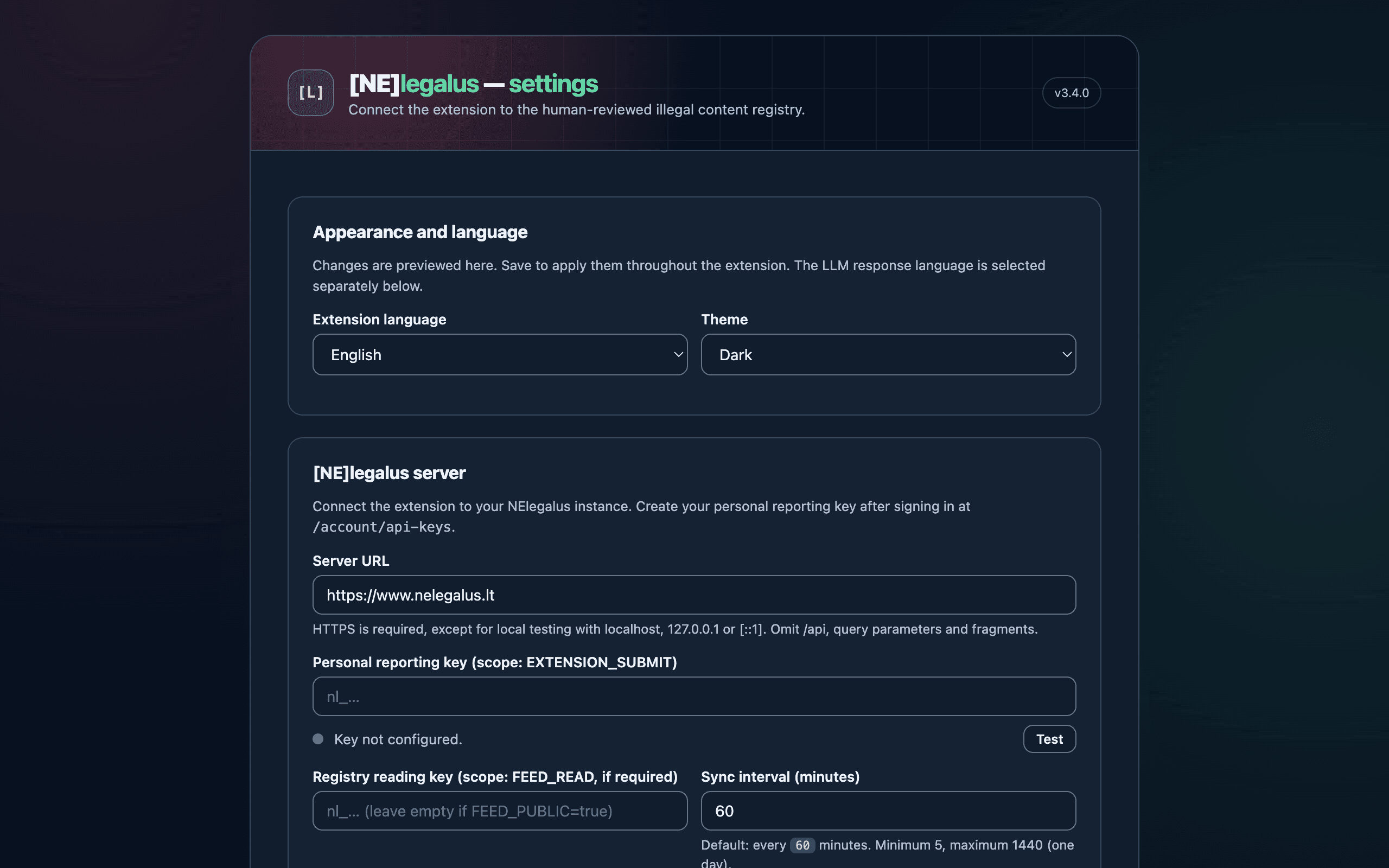
Settings · dark theme
Set a theme manually or follow your system appearance.
View full size (Opens in a new tab)Language and appearance Settings that adapt to you.
In version 3.4.0, open Appearance and language in the extension settings. Choose Lithuanian, English or your browser language. Select a light, dark or system theme.
Preview changes immediately in the settings window. Save to apply your choices throughout the extension. The language of AI responses is selected separately.
Submitting reports Connect your account when you want to report.
This connection is separate from installation. It lets the review team identify the report author and lets you follow the review process.
- Sign in to your NElegalus account. In the API key section, create a personal extension reporting key and copy it immediately.
- In the extension settings, keep https://www.nelegalus.lt as the server address and enter your personal reporting key. Save the settings, test the connection and sync the saved configuration.
- Open the extension on the page you are visiting. Review the address, choose a category, describe the circumstances and confirm submission for review.
Optional AI assistance A second opinion before human review.
Checking a domain and submitting a report do not require a language model. For an additional opinion, enable the LLM feature in settings, choose OpenAI Responses API or a compatible provider, enter its API key and model, and save.
- Before a request, review and edit the selected page text as needed. The extension shows the URL, provider address and model.
- You confirm sending to the provider separately. The API key is stored locally in your browser.
- An AI response does not replace a human review decision. You can turn the feature off completely.
Privacy and security Review, then confirm.
- The NElegalus server receives the URL, category, description and optional evidence link you confirm.
- Page content is not sent to the registry and network traffic is not intercepted.
- An unavailable or outdated registry is shown separately. A domain absent from the list is not automatically safe or legal.
- You can revoke your personal reporting key at any time from your account.
- The registry includes domains confirmed by the review team and data from official RTK lists.